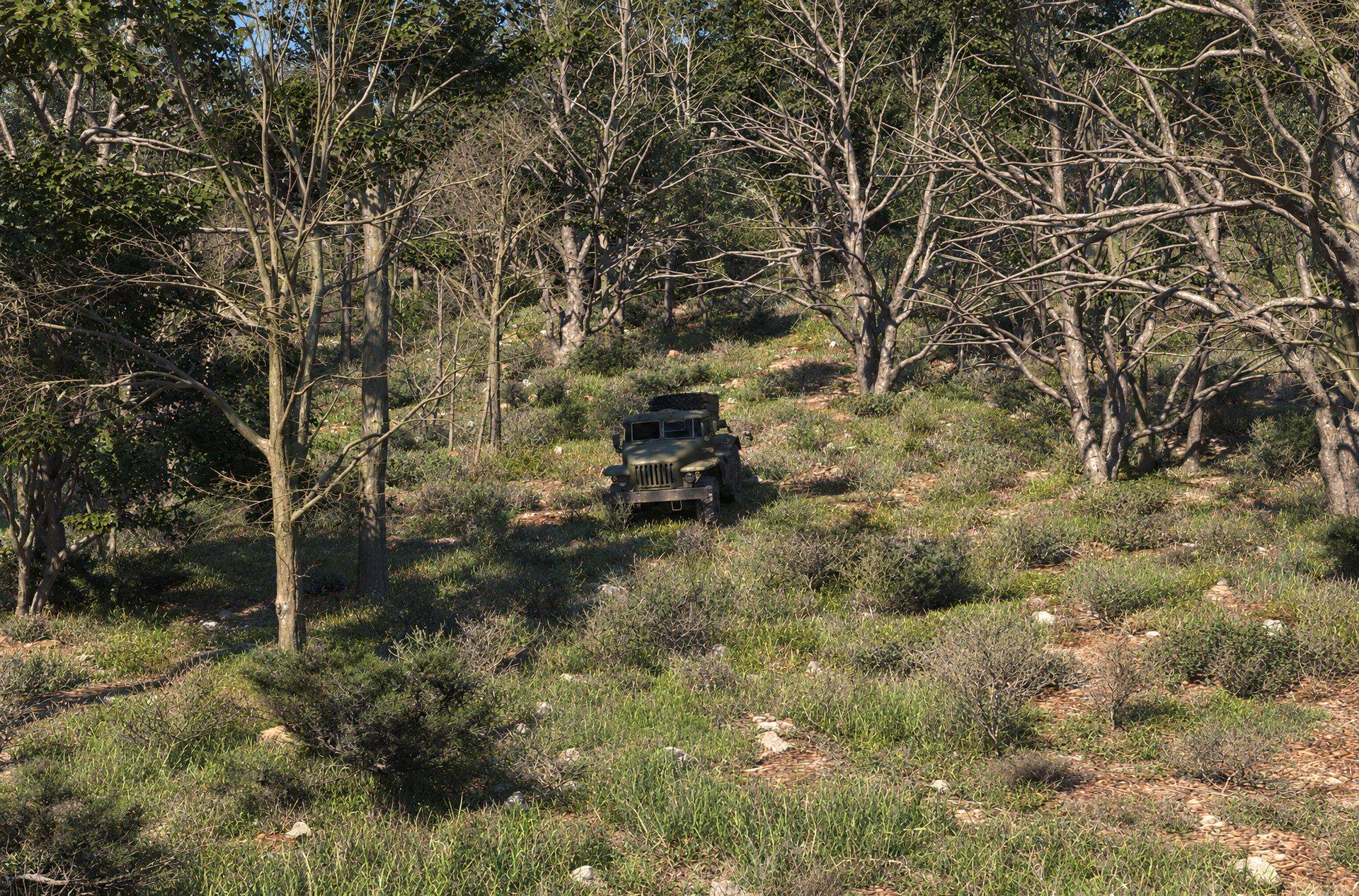
Import your own 3D models. Keep them private.
Your team prepares and imports its own models without sending the source files to AI Verse. Use those models in GAIA to generate labelled images for computer vision.
Your team controls what goes into the dataset
Keep sensitive models in-house
Import, preparation and export run in your own environment. The resulting asset is encrypted for use by your organisation.
Add new equipment yourself
When a new model or prototype is ready, your team can prepare it, check it and export it for GAIA without requesting a new catalogue entry.
Vary appearance and thermal response
Define colour and temperature variations for the same asset. Use them in visible-light and long-wave infrared (LWIR) training images.
Your source files stay in your environment
Your team prepares and validates the model locally. GAIA uses the encrypted export to generate datasets.
Your team prepares the asset
- Import
Bring in a GLB or glTF model with its materials and textures.
- Enrich
Variations. Define interchangeable paint schemes, markings, part positions and light states. GAIA combines the options you choose to generate different versions of the same model across scenes.
Thermal infrared (LWIR). Paint thermal zones directly on the model. Set how each surface responds based on its material and temperature, then preview the thermal signature before export.
- Validate
Preview the asset, run export checks and fix any blocking errors.
.cafeGenerate labelled images
Use the prepared asset across synthetic scenes. GAIA generates images and object masks from the same scene.
One 3D asset, many configurations.
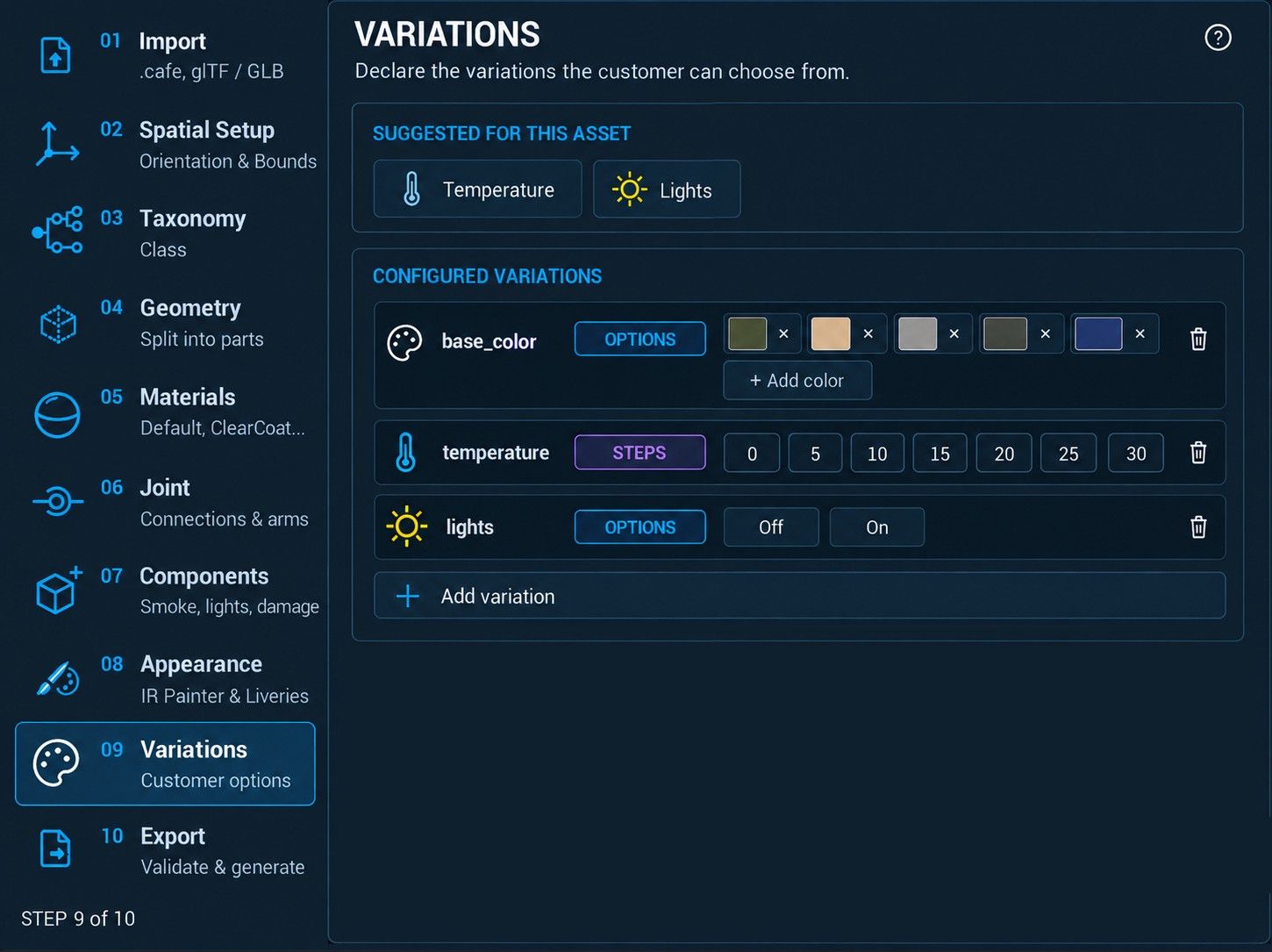
Your team defines what can change. GAIA samples from those options for each scene, so you can control the range of appearances and states in your dataset.
- Base colours from your own palette
- A range of surface temperatures for thermal imagery
- Lights on or off
- Moving parts and damage states
- Liveries, camouflage and optional equipment
One 3D model, hundreds of possible combinations
Combine turret positions, camouflage patterns, surface temperatures and lights on or off. Your team defines the options, and GAIA samples from them as it generates scenes. The four renders below show how camouflage, turret rotation, gun elevation, firing state and lights can vary on the same vehicle.
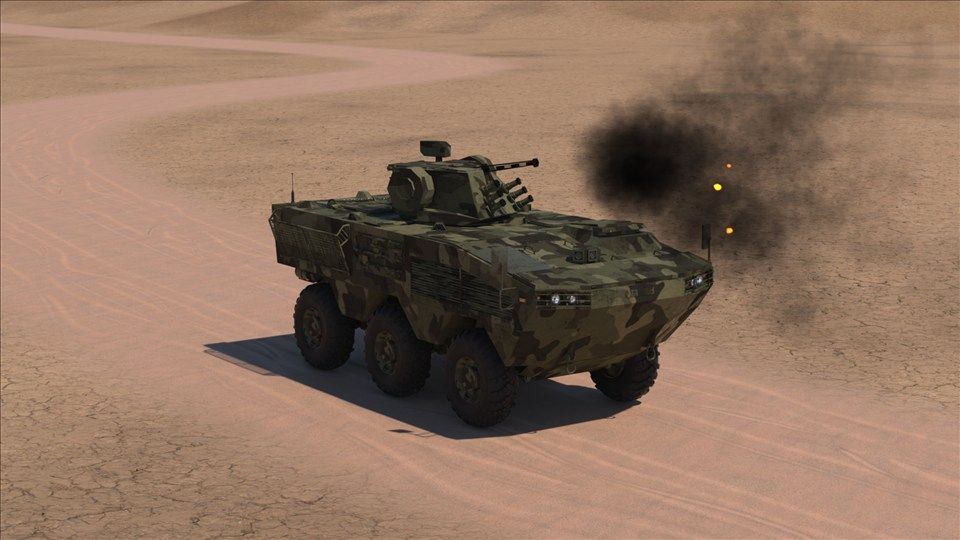
Turret −20° · Gun elevation +5°
Firing On · Lights Off
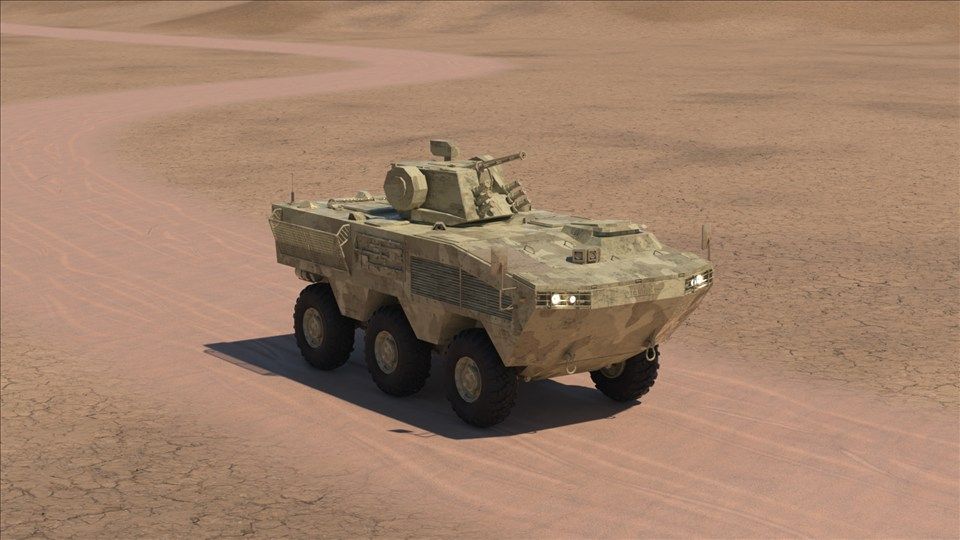
Turret −10° · Gun elevation +10°
Firing Off · Lights On
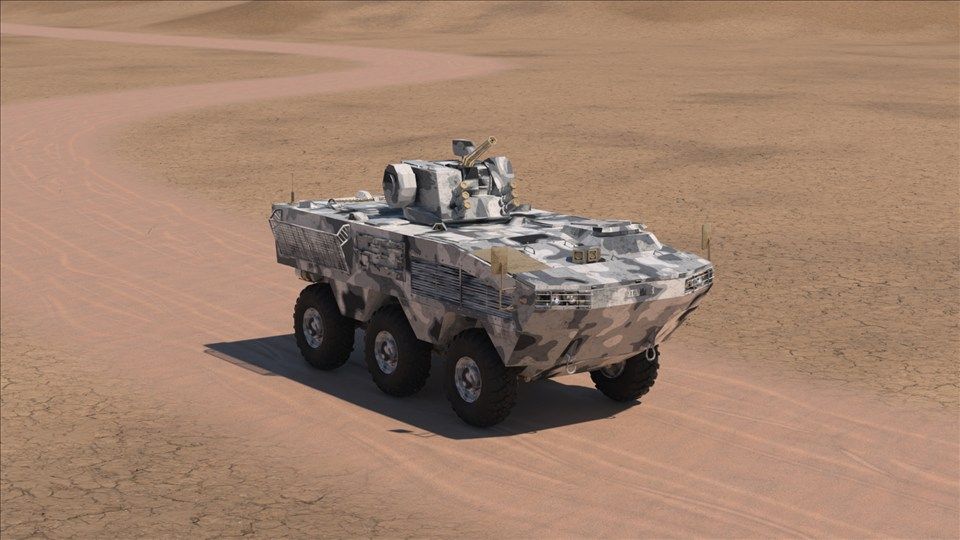
Turret +10° · Gun elevation +20°
Firing Off · Lights Off
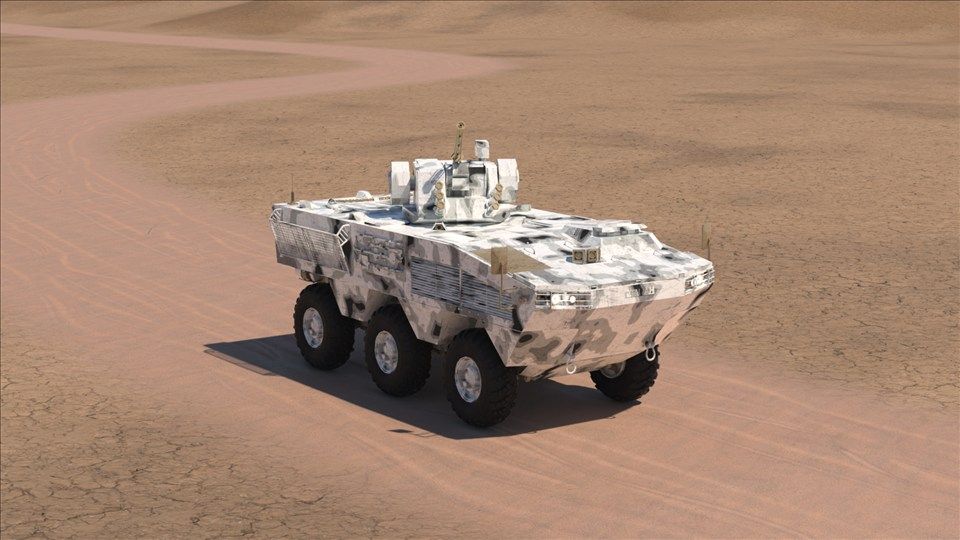
Turret +30° · Gun elevation +30°
Firing Off · Lights On
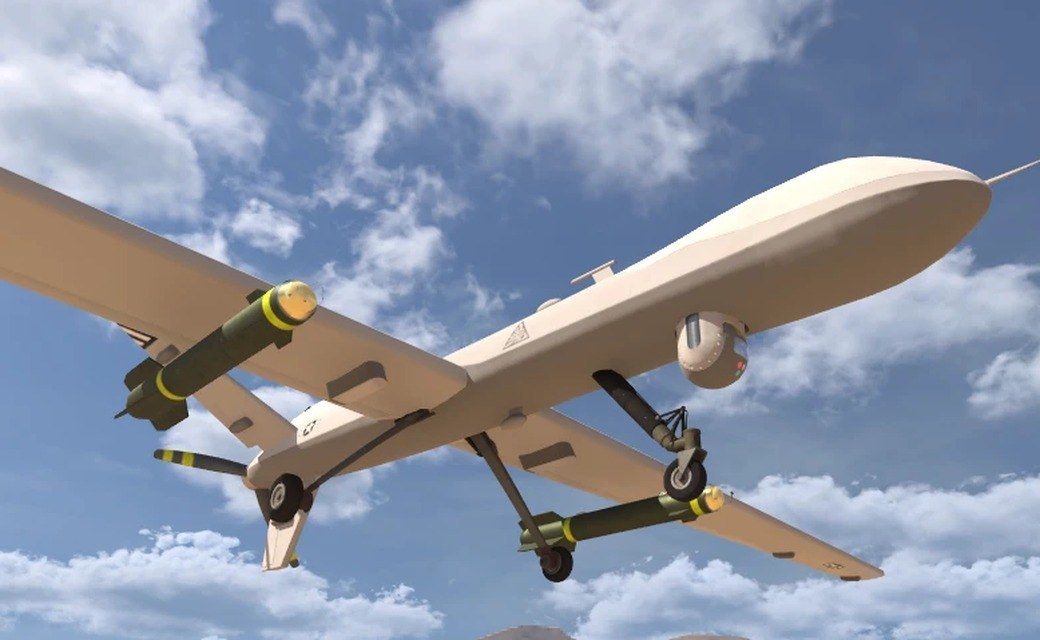
One MQ-9 Reaper model, three configurations
Three renders of the same aircraft show how equipment and landing gear position change its appearance.
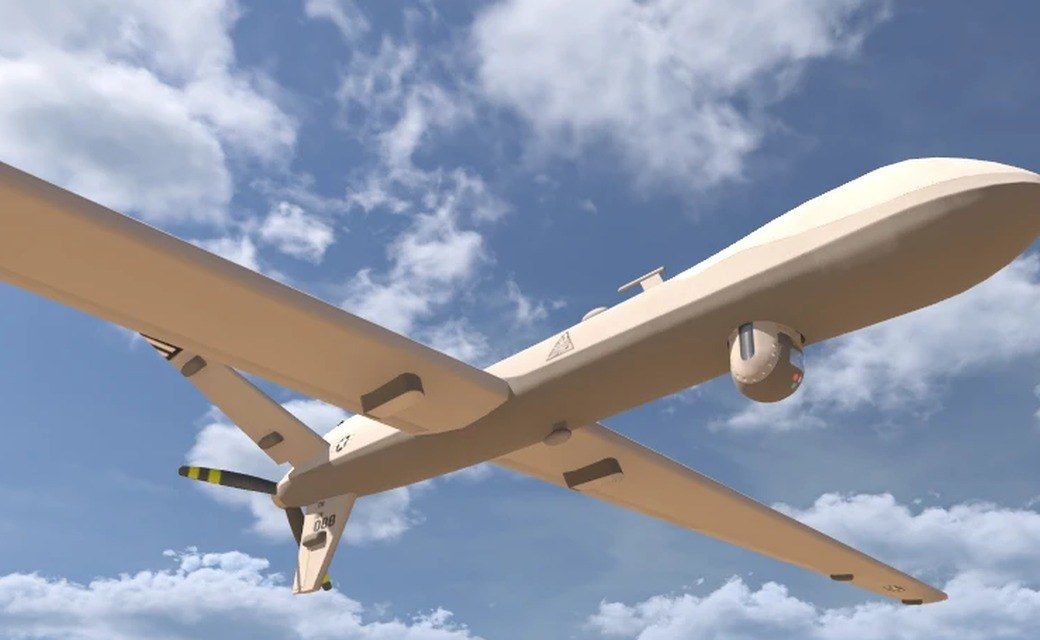
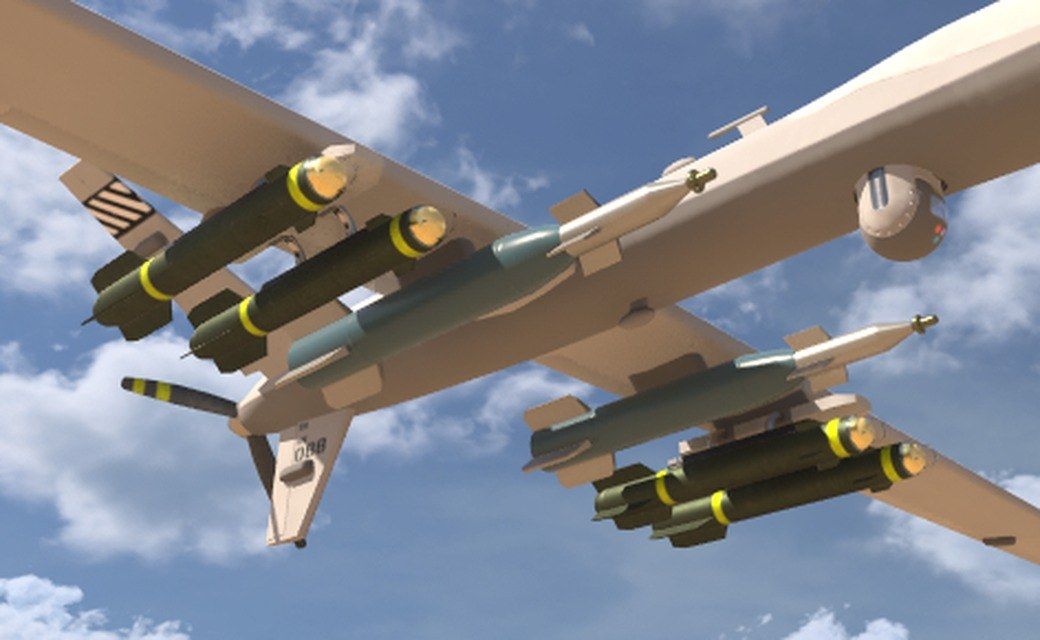
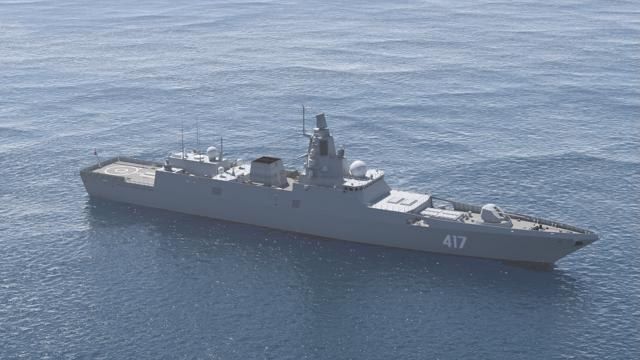
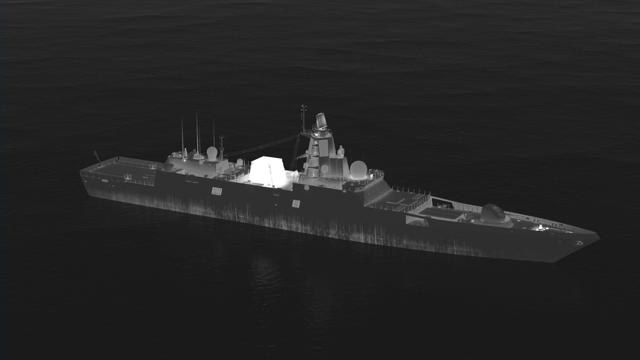
The same model in visible light and thermal infrared
Define the surface temperatures GAIA can use for long-wave infrared (LWIR) imagery. The same frigate model illustrates how warmer areas can stand out in a thermal image.
Catch problems before a dataset run
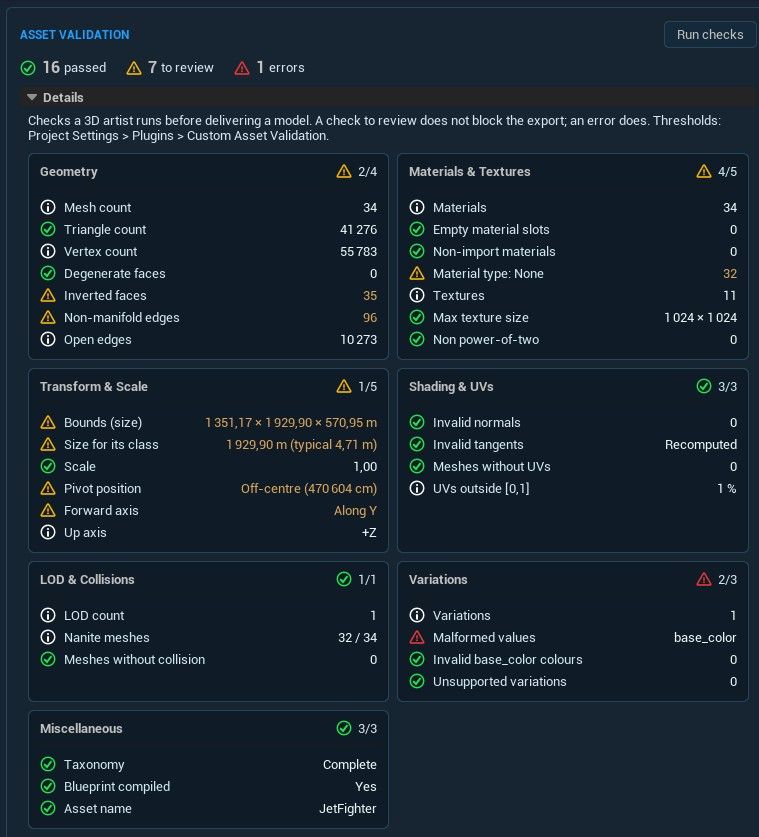
A model imported at the wrong scale can look fine on its own. The importer checks its size against the expected range for its class and can suggest a scale adjustment.
- Check the render. Inspect colours, textures and reflective surfaces.
- Check the annotation. Preview the object mask and see whether it covers the intended parts.
- Check the export. Review warnings and resolve blocking errors before packaging the asset.
Questions before a demo
Do we need to send our 3D files to AI Verse?
+
Your source models stay in your environment. The encrypted export is for your organisation and stays outside the shared GAIA catalogue.
What do we need to get started?
+
A GLB or glTF model and the Custom Asset Importer installed in your environment.
What is a .cafe file, and how do we update it?
+
It is the encrypted file GAIA loads. It contains the prepared geometry, materials, object classification and variation settings.
Keep the project used to prepare the asset so you can edit it and export a new file.
See the workflow on a sample model
Tell us what your computer vision system needs to recognise. We can demonstrate the import, the validation checks and the resulting labelled images using a sample asset. You can keep your own 3D files private.